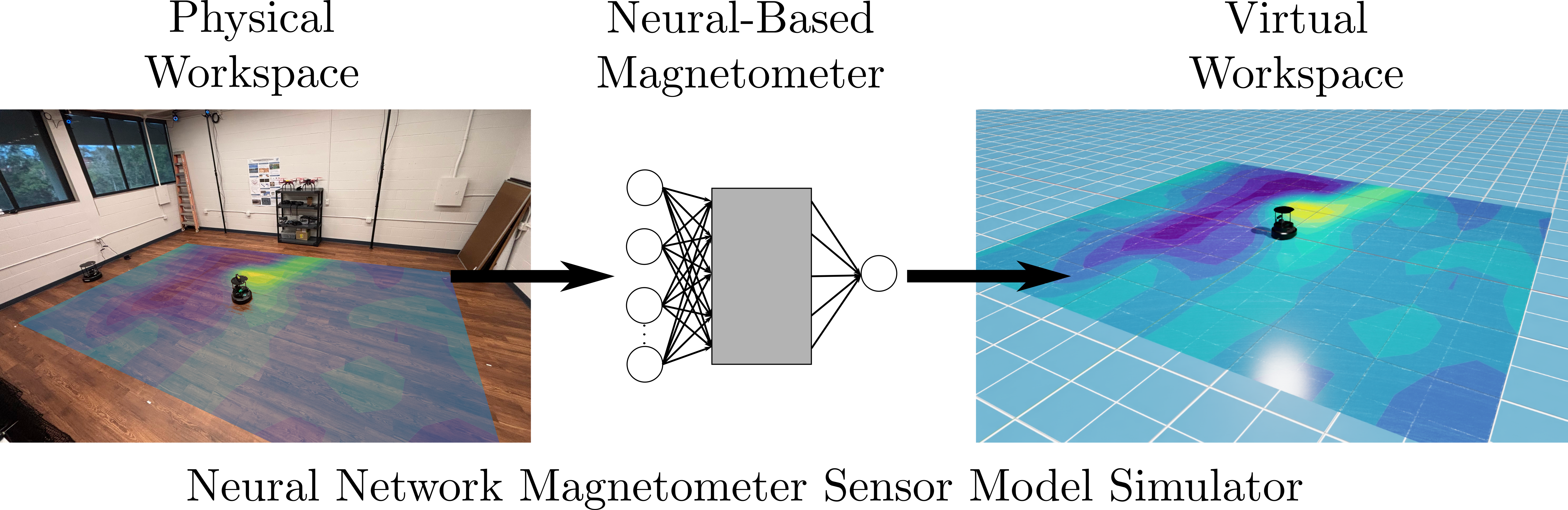
Abstract
Installation of Isaac Sim Environment
To run the simulation environment please visit the Github Repo for the environment provided. The installation instructions given in the repo are mirrored here.
To install the Isaac Sim MagNav Sim, first download the repo to create the environment. Extract these files to a folder you can easily locate: /home/user/MagNavIsaacSim
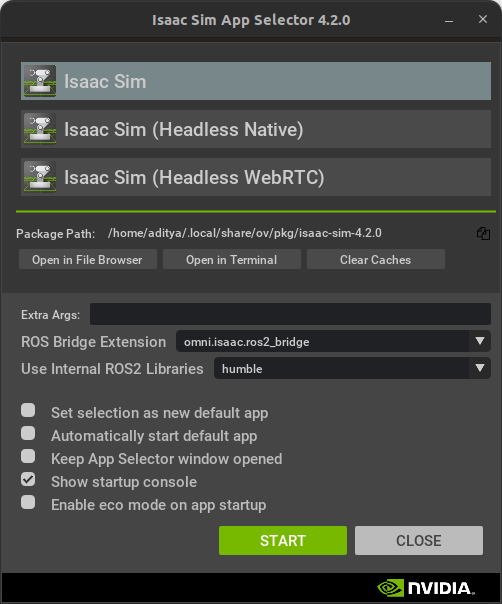
To run the robot sim environment, open NVIDIA’s Omniverse launcher and run Isaac Sim with the ROS2 Bridge Extension
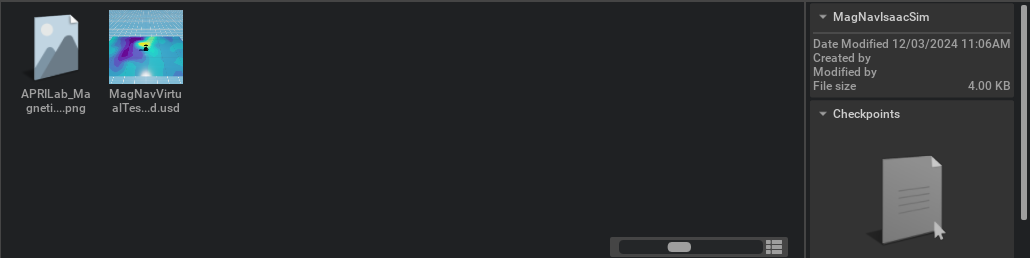
Then navigate to the folder you extracted the files to in either the content explorer, or from File->Open. You will see the two following assets in the extracted folder:
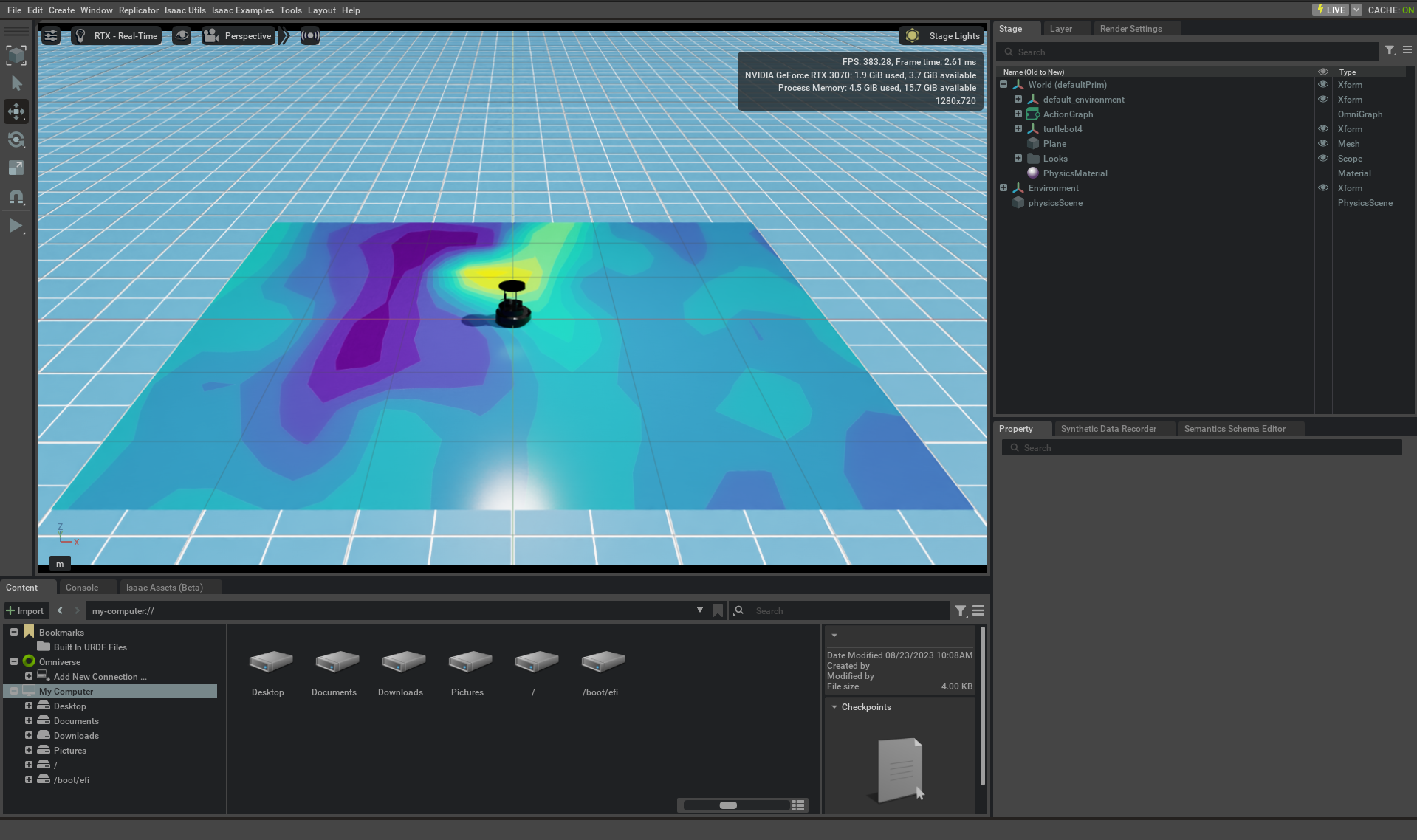
Open the file called MagNavVirtualTestbed.usd which contains the environment used. You will see the environment which looks as follows:
You can now move onto the ROS2 package installation to control the robot in the virtual environment.
Installation of Neural Based Magnetometer
To run the simulated magnetometer please visit the Github Repo for the magnetometer simulation provided. The installation instructions given in the repo are mirrored here.
To install the package you must git clone the repository into your workspace. This can be done as follows:
mkdir -p nn_magnetometer_ws/src && cd nn_magnetometer_ws/src
git clone https://github.com/aprilab-uf/nn_magnetometer
cd ../
colcon build --symlink-install
This will clone and build the package into the workspace. Do remember to source the workspace once you are done building to ensure you can see the package nodes. To run the magnetometer and a path follower to test the performance of the NN-based magnetometer run the following launch file (ensure the Isaac Sim environment is running live):
ros2 launch nn_magnetometer nn_test_sim.launch.yaml robot_namespace:="robot"
nn_magnetometer_node
To run the nn_magnetometer node, the easiest way is to run the launch file given. Some {robot_namespace} is required to namespace the topics. Make sure they are consistent between nodes you want to use. Once the package has been built you will have to have the following topics publishing:
/{robot_namespace}/enu/pose/{robot_namespace}/odom/{robot_namespace}/imu/{robot_namespace}/battery_state- Only runs on the physical robot, so will not be published if running in Isaac Sim, ensure the parametersimis set totrue
Then you can run the following to launch the node:
ros2 launch nn_magnetometer nn_magnetometer.launch.yaml robot_namespace:="<robot_name>"
An example for the robot_name is:
ros2 launch nn_magnetometer nn_magnetometer.launch.yaml robot_namespace:="robot"
Now if you check the ROS 2 topics being published you should see a /robot/qtfm/field topic show up.
The following are the parameters and descriptions required for the node:
robot_namespace- The robot name to ensure the topics are namespaced appropriately. Default isrobot.model_name- The name of the models that are contained within thedata/models. Default isnn_magnetometer_model_v0.0.1.pth.save_json- Whether to save a JSON file that contains all the topics (subscribed and published) that the node receives. Default isfalse.sim- Whether or not this is running in a simulation environment. Default istrue.data_type- The name of the data type for saving the JSON file. It helps distinguish between multiple runs.
path_follower_node
Available in this package is also a path follower node that subscribes to a /{robot_namespace}/enu/pose topic and publishes a /{robot_namespace}/cmd_vel topic for a TurtleBot4. These topic conventions follow what is expected on a TurtleBot4. To run this path follower the following topics need to be subscriptable:
/{robot_namespace}/enu/pose
Then a launch file can be used to launch the path following node as follows:
ros2 launch nn_magnetometer path_follower.launch.yaml robot_namespace:="<robot_name>"
The following are the parameters and descriptions required for the node:
robot_namespace- The robot name to ensure the topics are namespaced appropriately. Default isrobot.stanley_gain- The stanley gain of the controller. This gain controls how closely the robot follows a predefined path. Tune if the controller is oscillating. Default is0.001.linear_velocity- The linear velocity of the TurtleBot4, i.e.linear.xfield in theTwistfor/{robot_namespace}/cmd_vel. Default is0.2.do_loop- Whether the path should be executed continuously. Default isfalse.flip_path- If you want to flip the path to execute a different path compared the predefined ones. Default isfalse.continuous- Whether the path is continuous or not. This means does the path end and start connect, if not the program will flip the path and add it back to the original path. Default istrue.